
How to Batch Redact Excel and CSV Files
Batch redact Excel and CSV files with spreadsheet rules for cell content, specified columns or whole columns, then review and export redacted copies.
How to Batch Redact Excel and CSV Files
Use this guide for payroll sheets, customer lists, supplier records, quotation tables, procurement ledgers or exported business data that need to be shared externally, moved across teams or sent to AI.
Spreadsheet redaction is about columns, rows, sheets and repeated values. Do not rely on a few manual find-and-replace operations.
Step 1: Add spreadsheet files and choose the redaction mode
Import XLSX, XLS, XLSM, ET or CSV files on the home screen. You can process multiple files in one batch. Choose detection categories and the redaction mode before starting.
If an Excel file requires a password to open, click the lock icon beside the file and enter the correct password before starting redaction. Passwords are verified and used locally.

Choose categories based on the file:
- HR or customer tables: names, phone numbers, emails, addresses
- Payroll or reimbursement files: amounts, dates, bank accounts
- Supplier or quotation tables: company names, amounts, invoice numbers
- Operational exports: customer names, project names, contract numbers
Configure spreadsheet-specific rules
Text rules apply to all supported file types. Spreadsheet rules apply only to Excel / CSV. A project can contain spreadsheets, Word documents, PDFs and other files with shared aliases.
Add a rule in Custom Rules on the home screen or in Project rules, and set Applies to to Spreadsheet rules:
- Match cell content: choose Fixed text, Wildcard or Regex and enter one content rule per line.
- Restrict matching to columns: select Match only in specific columns and enter Specify header. Header and content match types are configured separately.
- Match whole columns: specify a header. Blocklists redact the entire column; allowlists exclude it from redaction.
For example, to match Acme Trading Ltd only in the Company name column, choose Match cell content, select Match only in specific columns and enter Company name as the header. Use the content wildcard Acme*Ltd with the Organization label. See spreadsheet rule instructions and screenshots.
Column redaction and speedup for large spreadsheets
For large Excel or CSV spreadsheets with fixed column names, choose Spreadsheet rules → Match whole columns before processing. Enter one column name or expression and choose its match type. Select a label for blocklist rules, then save.
For example, to redact all names in the Customer name column, choose Blocklist, enter Customer name as the header and select the Name label. Data below the header is redacted directly using that label, skipping content recognition to save time.
To preserve the Product category column, choose Allowlist and enter Product category as the header. Original values are preserved and content recognition is skipped from the header row onward. Unmatched columns continue through automatic recognition. When the same header matches both lists, the allowlist takes precedence.
For multiple financial columns, add rules individually or use the header regex ^(Account|Account code|Account number|Voucher number|Voucher code)$. Headers match the entire cell. Increase the number of rows searched if the header falls outside the search range.
Custom Rules on the home screen manages global rules; each project manages its rules independently. Changes to Match cell content rules in a project apply to existing spreadsheets. Changes to Match whole columns rules apply to files added later. See whole-column matching and speedup for full instructions.
Choose the redaction mode
Recommended redaction modes:
- Names, customers and suppliers: pseudonymization.
- Phone numbers, IDs and bank accounts: partial or full masking.
- Amounts and dates: keep or mask based on the analysis goal.
If the spreadsheet will be analyzed by AI, aliases usually preserve more value than replacing everything with asterisks.
Step 2: Check free-text columns
Sensitive values may appear in columns named Notes, Contact, Owner, Address, Description or Remarks. They may also appear in multiple sheets.
After detection, review actual hits instead of assuming the header tells the full story.
Step 3: Review hits by category
Use the hit list to inspect what was detected.
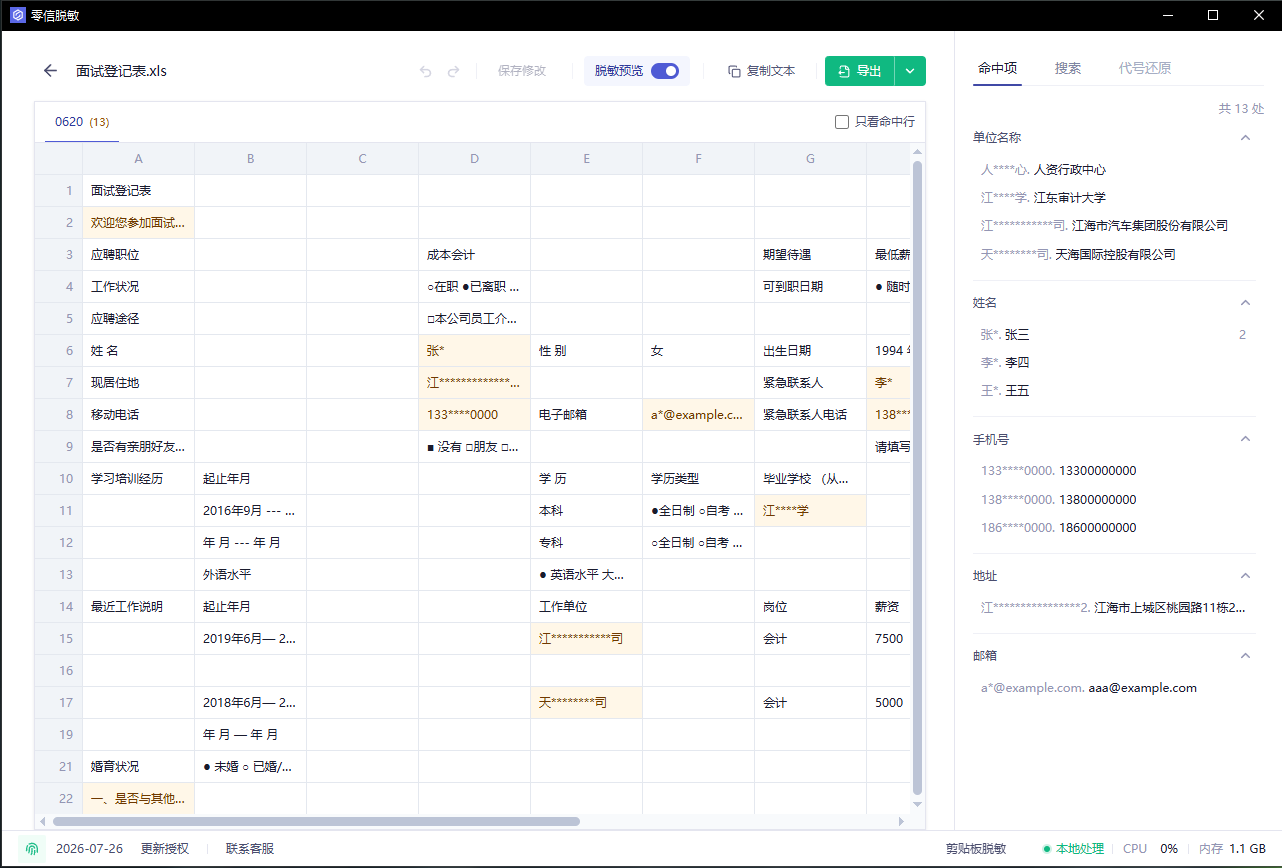
Review in this order:
- Names, phone numbers, emails and ID numbers.
- Company names, customers and suppliers.
- Bank accounts, invoice numbers, amounts and addresses.
- Free-text columns such as notes and descriptions.
If a repeated value should be kept for analysis, use a stable alias instead of deleting the context.
Step 4: Search columns and batch redact matches
Open Search in the right panel. Use the dropdown beside the search field to select Workbook, Sheet or a column such as Column A or Column B. Enter a known name, customer abbreviation or other keyword, or turn on regular expressions to search by pattern. Workbook search covers every sheet in the current file; column search covers all rows in the selected column.
See the search scope dropdown and batch redaction instructions.
Review the results, click Batch annotate, choose a label and confirm to redact matches using the current mode. Results that already have annotations are skipped. For example, select the Notes column, search for a customer abbreviation and batch redact matches in that column.
Step 5: Export and spot-check
XLS, XLSM and ET files export as XLSX.
After export, check:
- The first and last rows of each sheet.
- Notes, descriptions, addresses and invoice fields.
- Whether filters, formulas and column order are still usable.
- Whether original names and phone numbers can still be found.
Send only the redacted copy.