How to Redact Documents Before Sending Them to AI
Use LocalMask to redact PDFs, Word files, Excel sheets, scans, images and copied text locally before using AI tools.
How to Redact Documents Before Sending Them to AI
Use this guide when you want to send a contract, report, spreadsheet, scan, screenshot or copied text to an AI tool such as ChatGPT, Claude or Gemini, but the material contains names, phone numbers, company names, addresses, accounts or internal business details.
The goal is not to black out everything. For AI work, stable aliases usually work better: the AI can still understand relationships without seeing the original identifiers.
Step 1: Import files and choose categories and redaction mode
Add the files on the home screen. PDFs, Word files, Excel sheets, CSV files, scans and images can be processed together. For a web, chat or email excerpt, choose text input on the home screen, paste the content and start redaction.
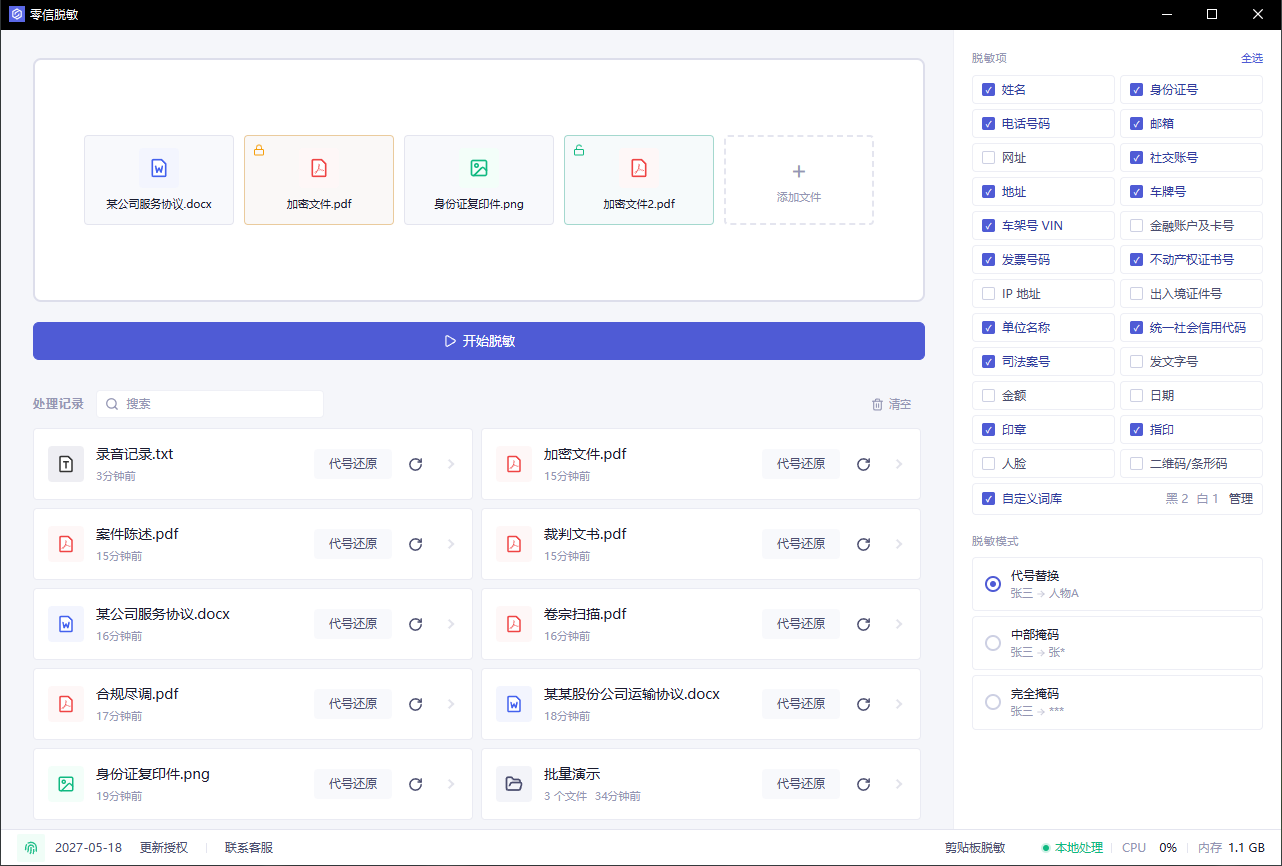
For AI preparation, commonly enable:
- Names, phone numbers, emails and addresses
- Company names and business identifiers
- Financial accounts, amounts and dates
- Seals, faces and QR codes
- Custom terms such as customer names, project names and internal codes
Choose the redaction mode before starting. For AI tasks, stable aliases usually work best:
- Jane Smith -> Person A
- Acme Ltd -> Company A
- A real address -> Address A
Use partial or full masking for phone numbers, ID numbers and account numbers when the exact value is not useful for the AI task.
Step 2: Review detected hits
After detection, open the review view and inspect the hit list. Do not export immediately.
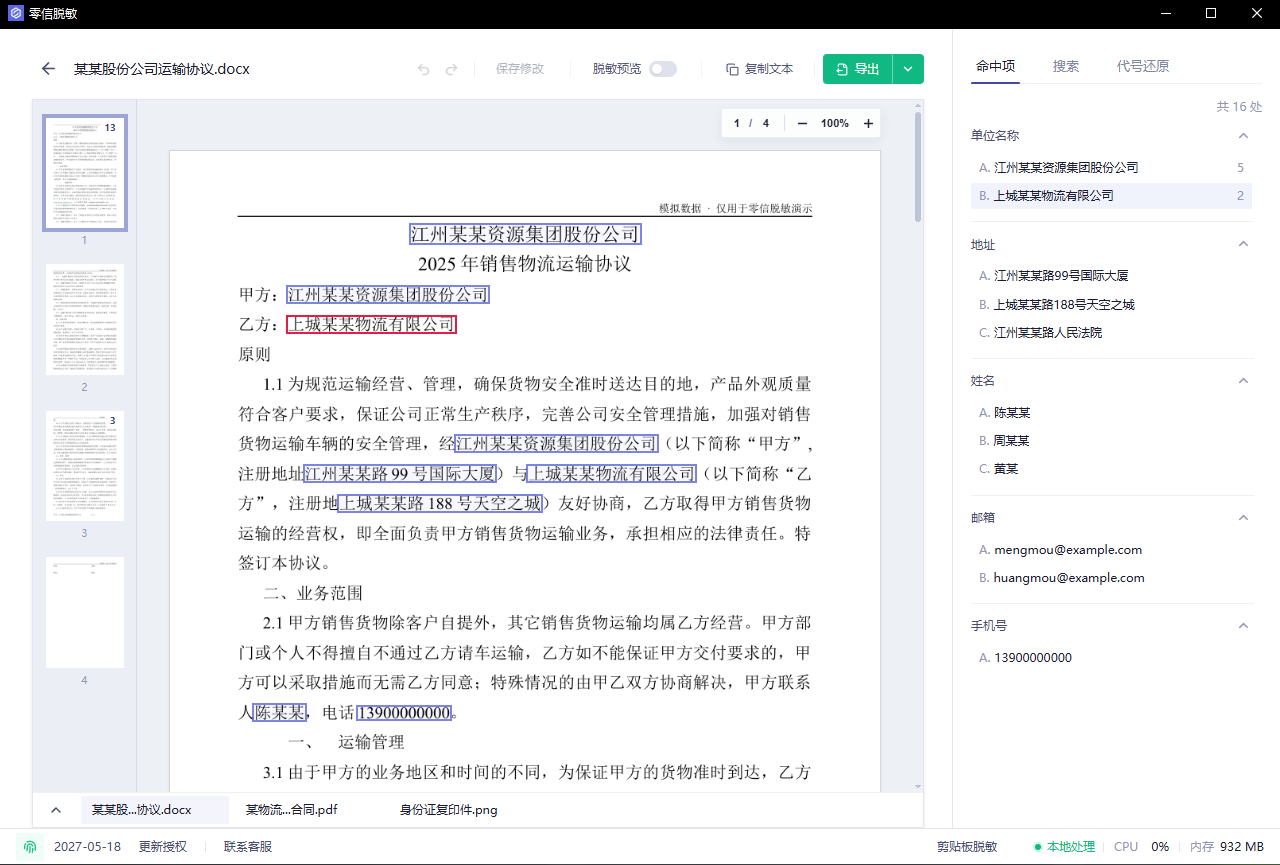
Check whether:
- Names, companies and contact details were detected.
- Public terms were incorrectly selected.
- Headers, footers, tables, attachments and scanned pages were missed.
- The same person or company uses a consistent alias.
If something is missing, mark it manually or add it to the blocklist under Custom Rules.
Step 3: Search for known sensitive terms
Search for terms you already know are in the file: customer names, project names, phone suffixes, email domains or internal codes.
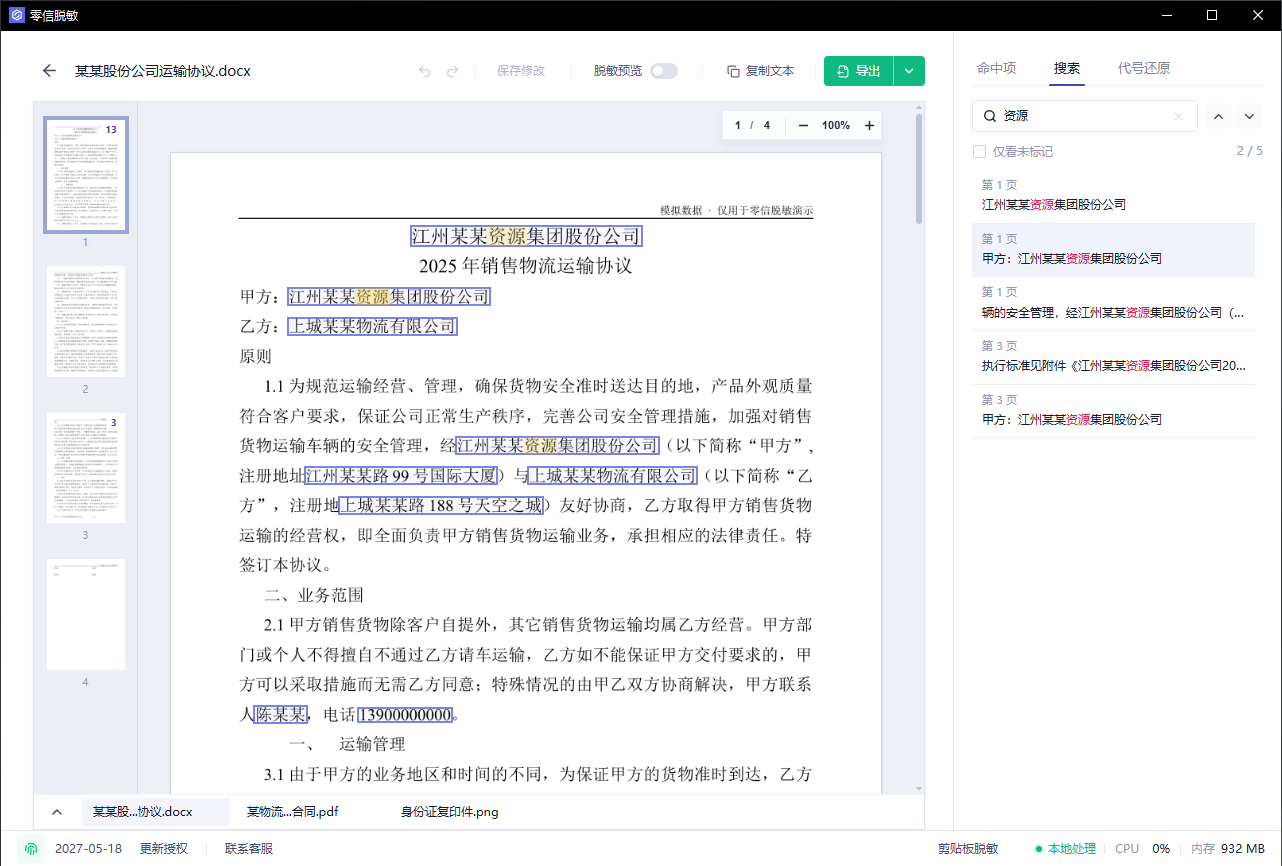
Search is a verification step. If the term still appears unredacted, fix it before export.
Review the search results and click Annotate all to add missing annotations in one step. Click .* beside the search box to enable regular expression search, with support for lookarounds.
Step 4: Preview the redacted result
Open the redaction preview and read the output as the AI will see it.
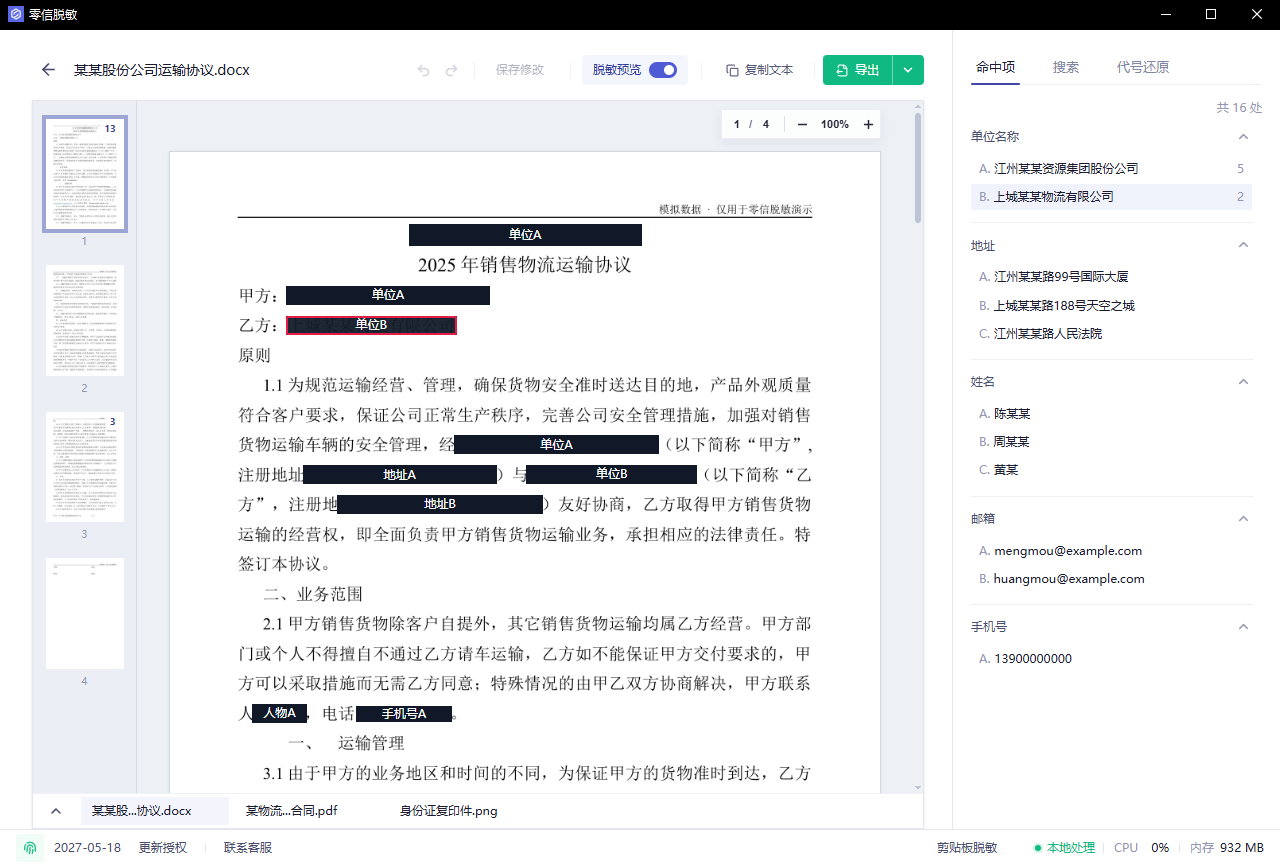
Make sure the document is still understandable, aliases are stable, and visual content such as faces, seals and QR codes is not exposed.
Step 5: Export, then send the redacted copy
Export the redacted file or copy the redacted text, then send that version to the AI tool. For a large scanned PDF, choose lightweight redacted Markdown for direct AI analysis, or a more compact redacted Word document (DOCX) with optimized paragraphs and table structure when you need to continue editing. Do not upload the original file by mistake.
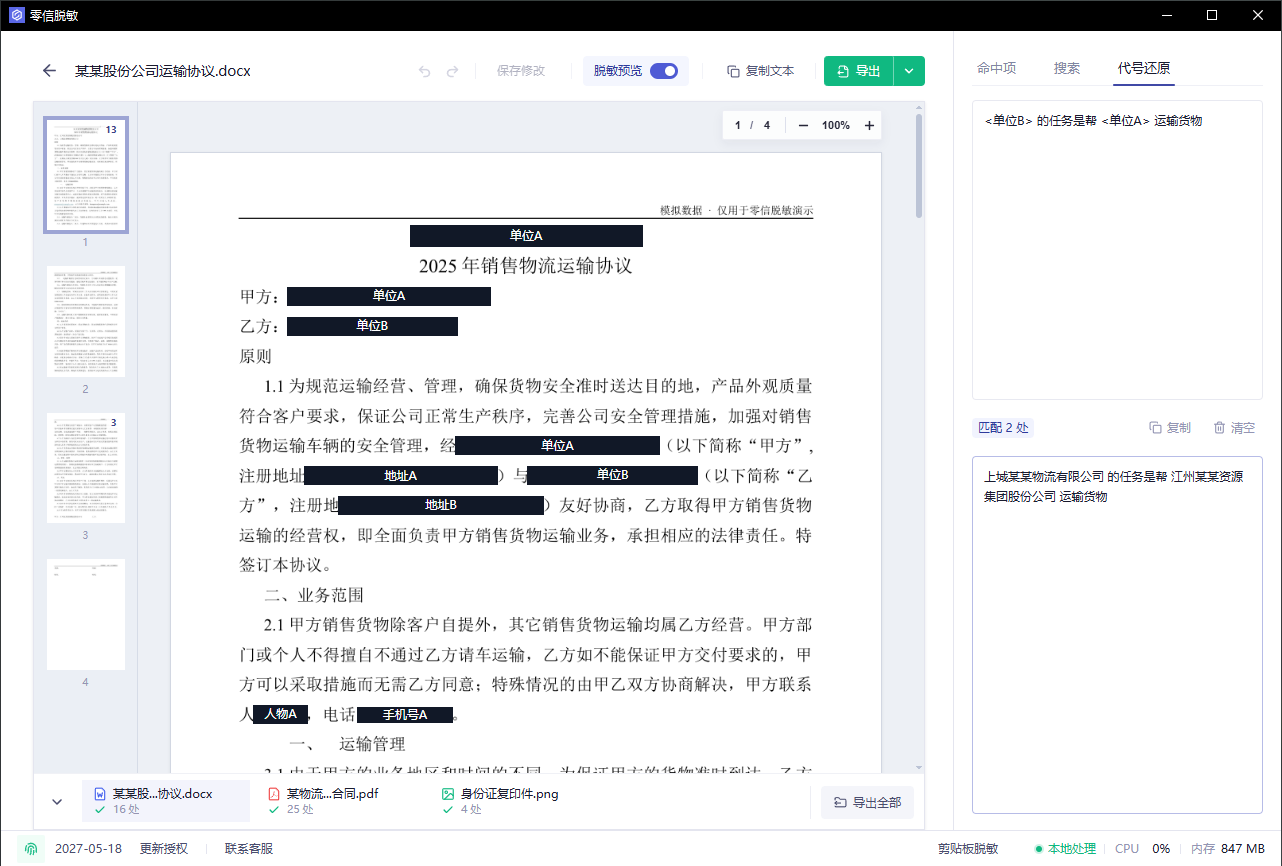
If the AI output contains aliases such as Person A or Company B and you need to restore them locally, use alias restoration.
Before sending, search the exported copy for the original names, phone numbers and customer names one more time.